Guides
Database Revisions
As your application evolves, your database schema needs to evolve with it. Takk integrates with Alembic to provide a streamlined migration workflow through the takk revisions command. Instead of remembering raw Alembic commands and flags, you get a simple interface that handles the common operations—both from the CLI and through a dedicated UI in the Takk dashboard.
Getting Started
If you're starting with a fresh database and have already defined your ORM tables, initialize your migration history with a single command:
takk revisions init
This creates the initial Alembic migration that captures your current database schema. It sets up the migrations/ directory and generates the first revision file that represents the baseline state of your database.
Creating New Revisions
When you modify your ORM models—adding columns, creating new tables, or changing relationships—you need a migration to apply those changes. Generate one with:
takk revisions new "add user preferences table"
This auto-generates a migration script by comparing your current model definitions against the database state. The message you provide becomes the revision description, making it easy to identify what each migration does when reviewing the history.
The generated migration file will appear in migrations/versions/ and contains upgrade() and downgrade() functions. Review the generated code before applying it—auto-generation handles most cases, but complex changes like column renames or data migrations may need manual adjustments.
Applying Migrations
To bring your database up to the latest revision:
takk revisions upgrade
This applies all pending migrations in order. Whether you're setting up a new environment or catching up after pulling changes, this single command ensures your database matches your current model definitions.
Rolling Back
If you need to undo the most recent migration:
takk revisions downgrade
This reverts the last applied migration, running its downgrade() function. This is useful when you realize a migration needs adjustments—roll back, modify the revision file or your models, and apply again.
Revision Management in the Dashboard
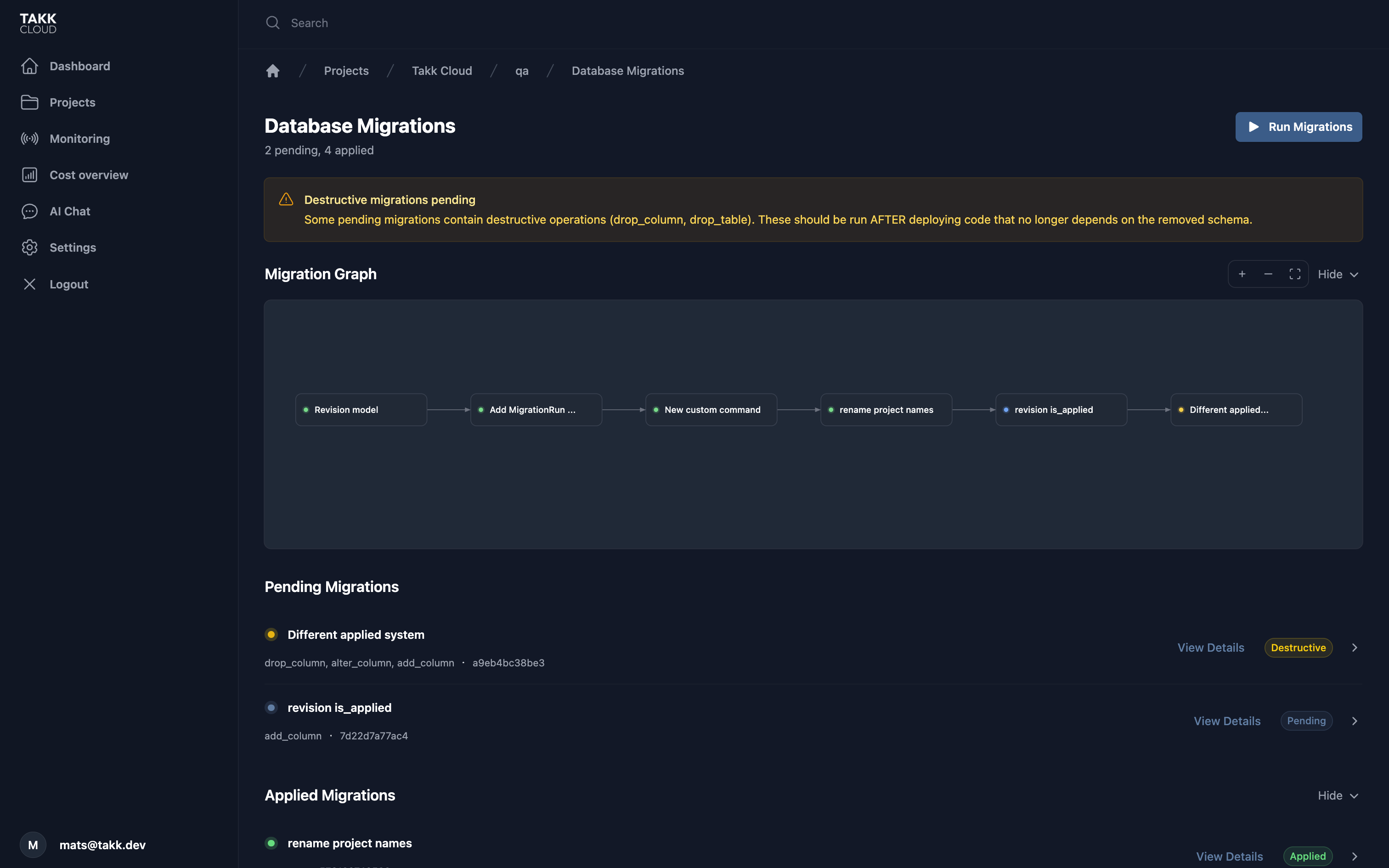
Beyond the CLI, Takk provides a dedicated revisions UI in the dashboard. The UI presents the full revision lineage as a visual graph, making it easy to see which migrations have been applied and which are pending across all your environments.
From the dashboard you can:
View the revision graph. See the complete migration history and how revisions relate to each other, including any branching.
Upgrade and downgrade any environment. Apply or roll back migrations in test, preview, or production environments directly from the UI without needing CLI access.
Get deployment-aware suggestions. Takk analyzes your pending migrations and suggests whether they should be run before or after a deployment. For example, adding a new column should typically be migrated before deploying the code that uses it, while removing an unused column is safer to migrate after the code change is live. These suggestions help you avoid downtime and runtime errors during releases.
Typical Workflow
A standard development cycle with migrations looks like this:
Modify your models
Generate a migration:
takk revisions new "describe your changes"Review the generated file in
migrations/versions/Apply the migration:
takk revisions upgradeIf something isn't right, roll back:
takk revisions downgradeCheck the revision graph in the dashboard to verify the state across environments
Tips
Always review generated migrations. Auto-generation is powerful but not perfect. Check that column types, defaults, and constraints match your intent.
Use descriptive messages. A message like
"add email verification columns to users"is far more useful than"update models"when looking through migration history.Commit migrations with your code. Migration files should be version-controlled alongside the model changes that produced them so that other developers and environments stay in sync.
Follow the dashboard suggestions. When deploying, pay attention to whether Takk recommends running migrations before or after the deployment to avoid issues with missing columns or broken references.